A win-back list can be ready to serve in Display & Video 360 (DV360) before anyone knows who can remove a customer from it. That’s the wrong order. Before the first upload, decide who owns the list, what it can be used for, and how someone leaves it.
Quick answer: To activate CRM audiences in DV360, build an approved first-party segment, create a Customer Match audience in the intended advertiser, and connect a governed data source or upload a compliant file. Apply the list as a target or exclusion on an eligible line item. Before launch, verify processing, inventory compatibility, targeting controls, refresh ownership and the removal process.
1. Define the audience before you export it
Start with one audience and one job. For example, a retailer might target customers with no purchase in 180 days in a win-back campaign. A separate acquisition line item might exclude buyers from the last 30 days. The CRM rules, refresh schedules and success metrics are different. Keep the lists separate.
Write a short audience spec with the source, regional scope, entry and exit rules, approved advertising purpose, destination advertiser ID, refresh cadence, and who can approve a launch or stop it. Keep permissions and consent decisions in the source system. Use only eligible first-party data and check Google’s Customer Match policies. For EEA users, Google requires granted consent signals for Customer Match ad personalization. Don’t add users who haven’t granted the required consent. An email subscription is not proof of permission for personalized ads.
Send only identifiers needed for matching in the accepted format. Keep order history, revenue and internal notes in the CRM; use them to define the segment, not as extra upload columns. Hashing eligible identifiers where supported does not replace consent or access controls. For the broader policy and measurement setup, see the first-party data activation guide.
2. Create Customer Match in the right DV360 advertiser
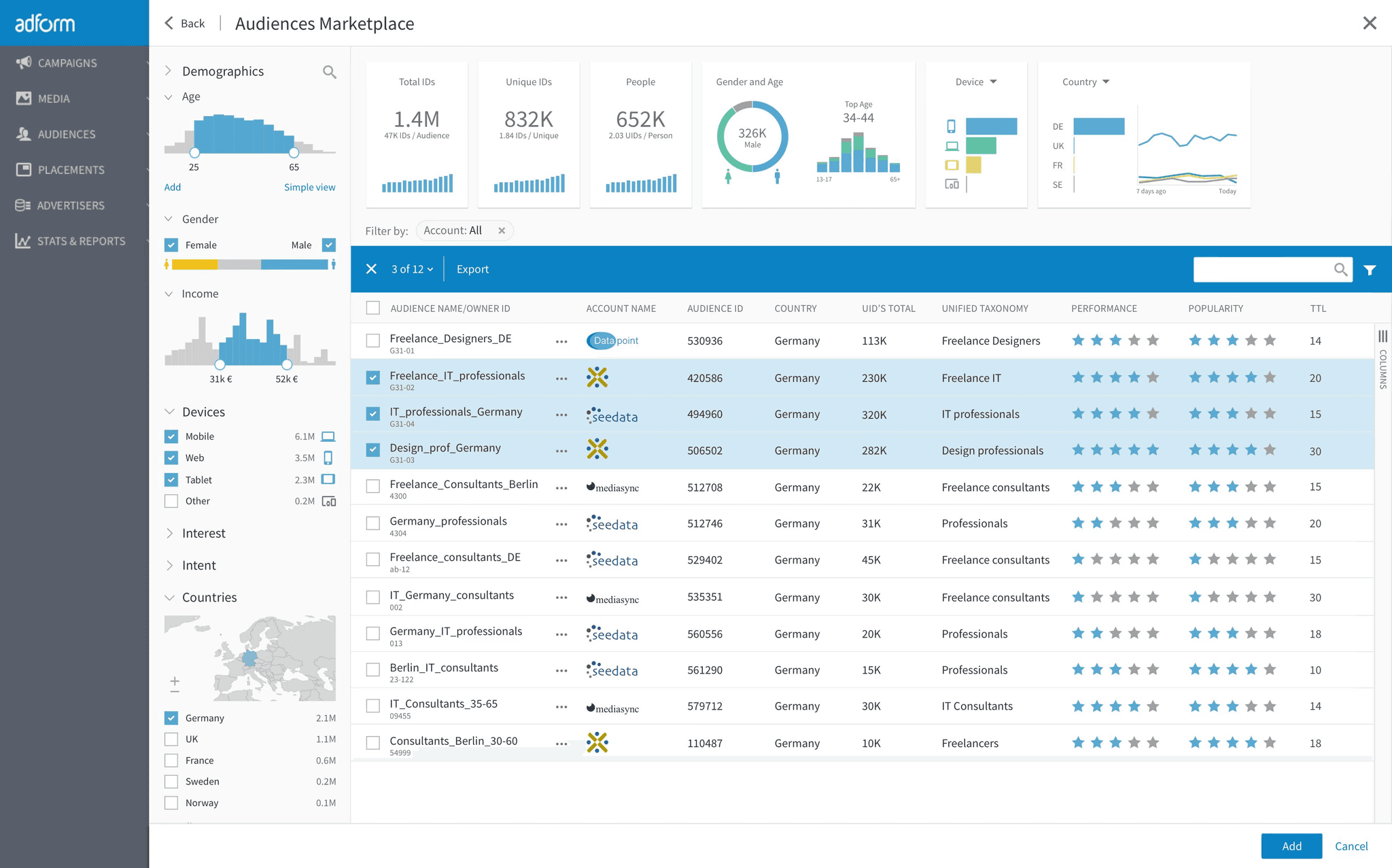
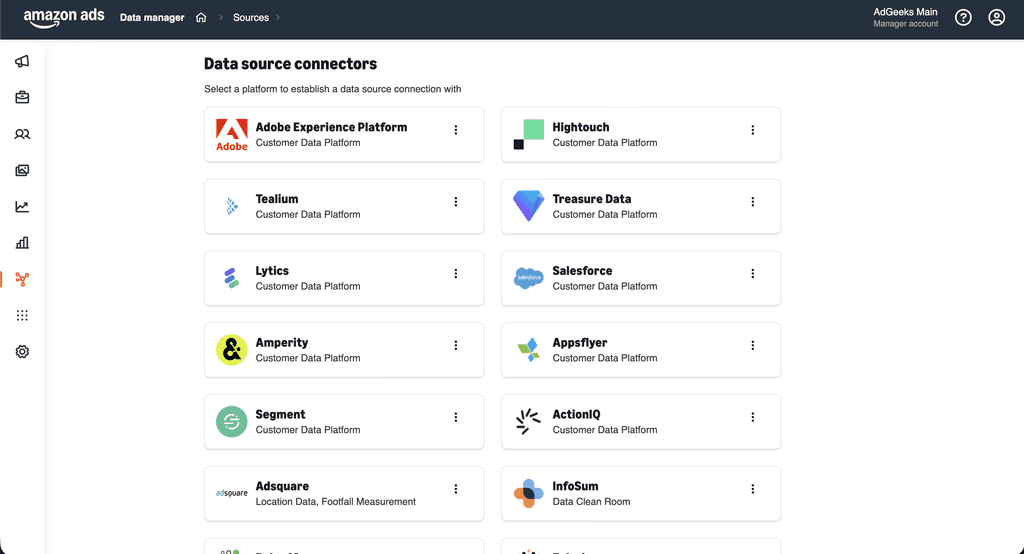
In the intended advertiser, open Audiences → All audiences → New audience → Customer match. Follow Google’s DV360 Customer Match instructions to select a supported data type and use an existing connection, upload a file manually, or connect a source later through Data Manager where available. Check the identifier mapping and data-use settings before saving. Google says changes to those settings can apply across data sources, so don’t treat them as a one-list switch.
Upload route | When to use it | What to check before launch |
|---|---|---|
Manual file | A scoped pilot or an infrequent, approved update. | Use the Google template and an approved transfer path. Assign an owner to refresh the list, remove members and dispose of temporary files. |
Data Manager connection | A segment that needs recurring updates from a supported source. | Limit access, monitor sync failures, and verify how source changes remove or replace members. A successful sync alone doesn’t prove deletions propagated. |
Approved upload partner | A managed integration where an eligible provider handles onboarding. | Confirm the provider’s scope, advertiser ID, consent mapping and removal workflow. Verify the route in Google’s Customer Match partner guidance. |
If an agency operates the campaign, agree who controls each layer: the CRM segment, connector credentials, DV360 list and line-item changes. Google says lists shared with an advertiser can’t be edited by that advertiser. If the brand can’t make removals directly, name the party that can and document the turnaround time and handover process.
3. Apply the list and QA the actual line item
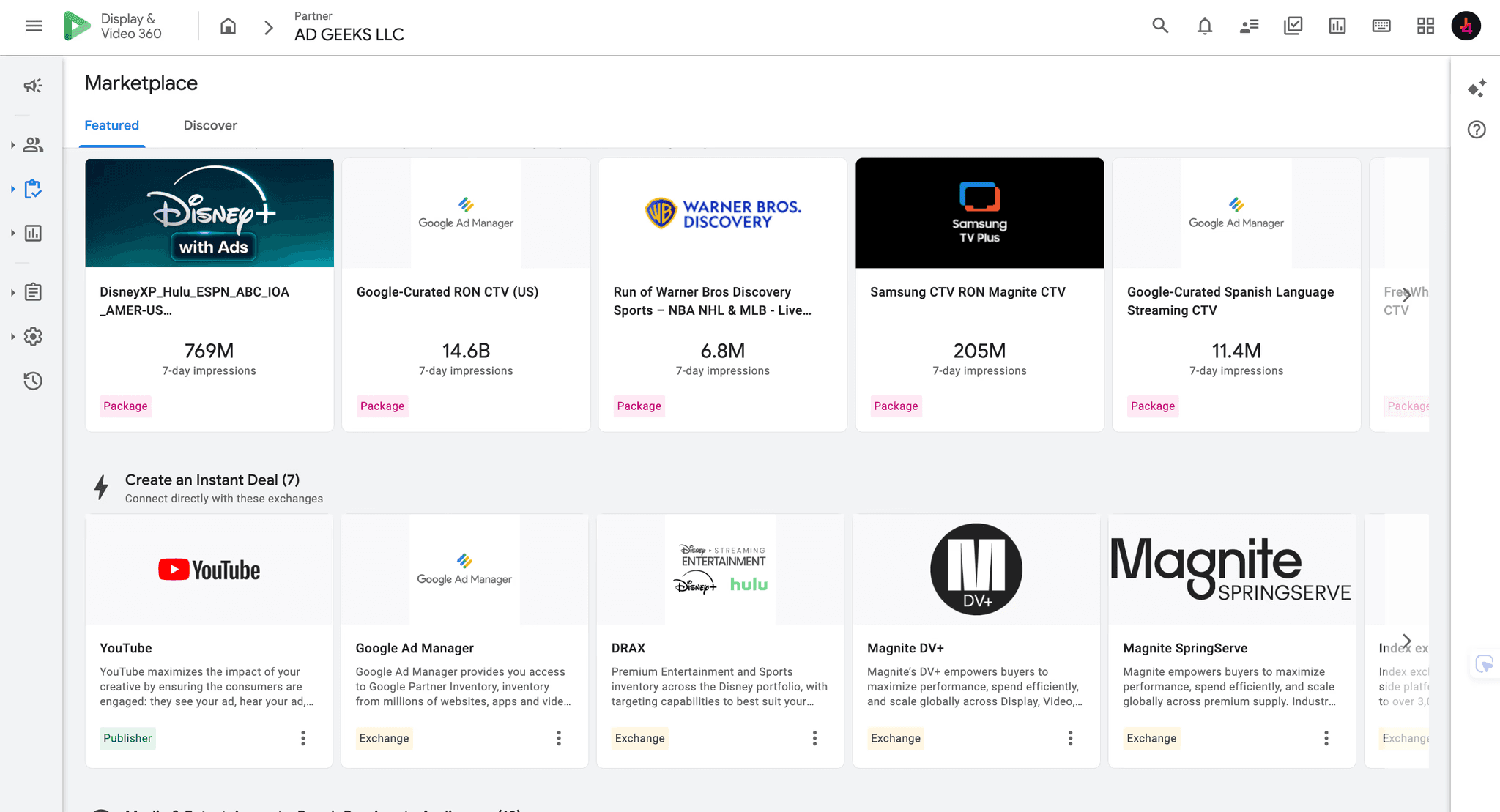
Open the line item and find Targeting → Add targeting → Audience lists. Choose the intended segment under first-party and partner audiences, then confirm whether it is included or excluded. Save and reopen the line item. Check any audience expansion or optimized targeting setting that applies: an audience used as a signal is not the same as a strict audience boundary. If the brief is CRM-only, verify the line-item configuration actually enforces that requirement.
Validate against the exact buying setup. Google documents different restrictions by identifier type, inventory, market, creative format and tracking. For example, contact-info-based lists don’t serve for positive targeting through third-party exchanges, and Google documents additional restrictions for YouTube tracking and certain creatives. Check the current limitations before promising reach, including on deals or specialized line-item types.
QA checkpoint | What to record |
|---|---|
Source and processing | Last successful run, eligible source count, accepted or rejected rows where reported, and list readiness. |
Targeting and inventory | Advertiser and line-item IDs, exact lists, include or exclude settings, expansion settings, and compatibility checks. |
Removal | Test with an approved test record or staging workflow. Record who handled it, whether it propagated and how long it took. |
Delivery and measurement | Check spend and delivery on the intended line item. Report results against the business goal, not just the uploaded list size. |
Keep uploaded rows, matched users and reachable users separate. An upload can process successfully with limited usable reach. Before widening the list, check formatting, consent coverage, match availability and inventory eligibility. For campaign structure examples, see how retailers use DV360 for prospecting and CRM activation.
4. Keep the audience governed after launch
Set the refresh schedule around how quickly membership changes. A recent-buyer exclusion may need faster updates than a seasonal win-back segment. Set an alert when the audience goes stale, a sync fails or the eligible source count changes unexpectedly. Assign a backup owner and define when to pause affected line items. A missed refresh on acquisition exclusions can put budget back in front of existing customers.
For manually uploaded, advertiser-owned lists, Google documents a Remove specific customers option. For other upload routes, Google says to make the change at the original source. Verify the behavior for your connection rather than assuming that dropping a row from an append-only feed removes it from the destination. If removals can’t be confirmed, pause the affected activation while you investigate. Keep an audit log of actions and outcomes, not a second copy of customer identifiers.
Frequently asked questions
Can I use a CRM audience as a DV360 exclusion?
Yes, where the line item supports the list as an exclusion. Check the exact setup and refresh it often enough for the use case. An exclusion only covers eligible users the platform can match.
Does hashing CRM data remove the need for consent?
No. Hashing changes how supported identifiers are prepared for matching. It does not make an audience eligible or remove consent, policy or data-handling obligations.
What if my DV360 Customer Match list isn’t serving?
Check processing status and eligible audience size first. Then verify the list type, inventory, region, creative and tracking compatibility, other line-item restrictions and whether the list was applied correctly.
Can an agency manage activation without taking control of our entire CRM?
Yes. The brand can approve a limited segment and retain control of the CRM. Give the operator only the access needed for the agreed workflow, and assign ownership for refreshes, removals and offboarding before launch.
Bring one use case, your advertiser setup and your intended data source. Talk to Ad Geeks about managed DV360 activation to scope first-party data setup, line-item QA and the handover process before media goes live.